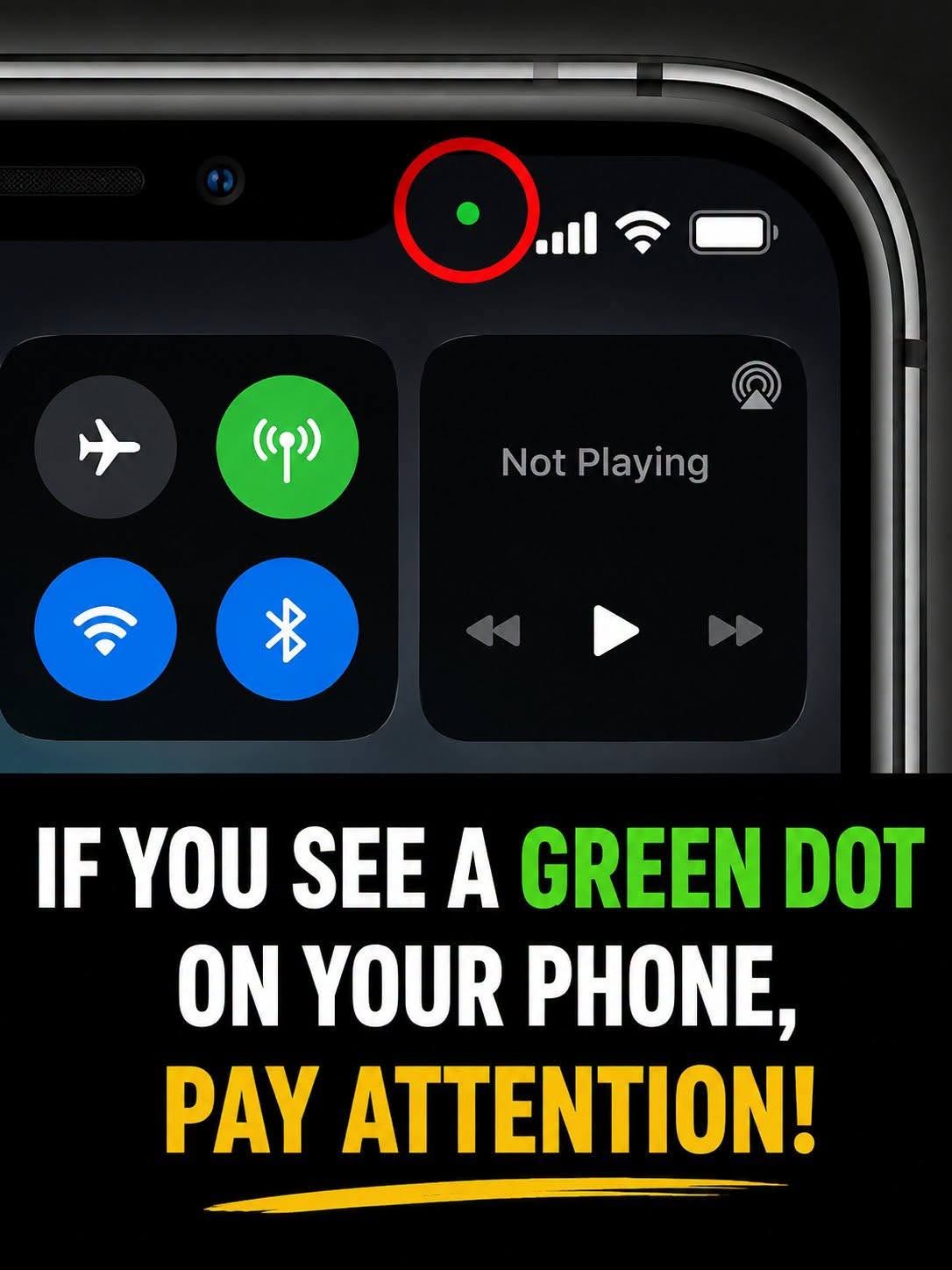
If you’ve glanced at the top of your iPhone screen and noticed a small green dot next to your signal bars, you’re not imagining things — and it’s not a bug. It’s actually one of the more useful privacy features Apple has built into iOS. Here’s exactly what it means and what to do about it.
What the Green Dot Means
The green dot indicates that your camera is currently active — either recording or actively feeding a live preview to an app. It appears the moment any app starts using your camera, and it disappears as soon as the camera stops being used.
If it’s your camera you’re actively using — say, you’re on a FaceTime call or just opened the Camera app to snap a photo — that’s completely normal and expected.
What About the Orange Dot?
There’s a companion indicator worth knowing too: an orange (or amber) dot means your microphone is currently active. If you see this outside of a call or a voice memo you intentionally started, it’s worth investigating the same way.
How to Check Which App Is Using It
If the green or orange dot shows up and you’re not sure why, iOS makes it easy to check:
Swipe down to open Control Center from the top-right corner of your screen.
Look at the top of Control Center — directly below the time, iOS will show you the name of the app that’s currently using your camera or microphone.
If you don’t catch it in the moment, you can check recent access too: go to Settings > Privacy & Security > Camera (or Microphone) to see which apps have used it recently.
When Should You Actually Worry?
Most of the time, this is nothing alarming — it’s just confirmation that the app you’re using (Camera, FaceTime, Instagram, Zoom, etc.) is doing exactly what you’d expect. The feature exists specifically so you’re never left wondering whether something is quietly watching or listening without your knowledge.
You should pay closer attention if:
The dot appears while you’re not using any camera or calling app, and it wasn’t triggered by something you did
You don’t recognize the app name shown in Control Center
It happens repeatedly with an app that has no obvious reason to need your camera or mic
If any of that sounds familiar, it’s worth reviewing your camera and microphone permissions in Settings > Privacy & Security, and revoking access for any app that doesn’t genuinely need it.
The Bottom Line
The green (and orange) dot isn’t a glitch or a warning sign on its own — it’s Apple’s built-in way of keeping you informed. The only time it’s actually a red flag is when it shows up and you can’t explain why. In that case, a quick check through Control Center or your privacy settings will tell you exactly what’s going on.